
In the vibrant world of digital communication, GIFs have become a universal language. They capture emotions, reactions, and moments in a way that static images and text often cannot. However, sometimes a GIF alone doesn’t fully convey your message. This is where the power of adding a Caption to GIF comes into play. By overlaying text, you can provide context, deliver a punchline, create a call to action, or simply make the content more accessible and engaging. Whether you’re a social media manager, a content creator, or just someone looking to spice up a group chat, learning how to add a Caption to GIF is an invaluable skill.
This comprehensive guide will walk you through the simple process of adding text to your GIFs, comparing several popular online tools to help you find the perfect method for your needs. We will specifically look at three prominent platforms: Clideo, Sendshort AI, and CapCut. Each offers a unique approach to achieving the same goal, allowing you to choose the one that best fits your technical comfort and creative vision. The process of adding a Caption to GIF can be broken down into a few universal steps, which we will explore before diving into the specifics of each tool.
The fundamental process for adding a Caption to GIF is surprisingly straightforward. First, you need to select your source GIF. This can be a file saved on your device or a URL from a site like Giphy or Tenor. Next, you upload this file to your chosen editing platform. Once uploaded, the core functionality begins: you access the text tool, type your desired caption, and then customize it. This customization is key to a professional-looking result. You can change the font, size, color, and positioning of the text to ensure it is readable and visually appealing against the moving background. Finally, you preview your creation, make any final adjustments, and export the newly captioned GIF, ready to be shared across your preferred platforms.
Now, let’s compare three specific tools that excel at helping you add a Caption to GIF.
Clideo: The All-in-One Online Video Suite
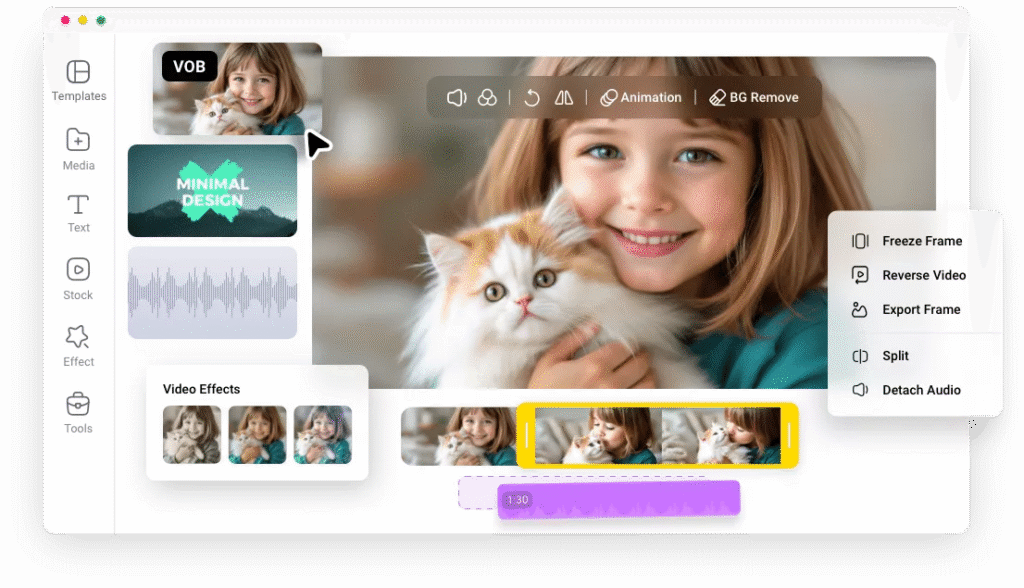
Clideo positions itself as a straightforward, browser-based solution for all basic video and GIF editing needs. Its interface is clean and intuitive, making it an excellent choice for beginners who want to add a Caption to GIF without a steep learning curve.
How to Use Clideo to Add a Caption to GIF:
- Navigate and Upload: Go to Clideo’s “Add Caption to GIF” tool page. You can drag and drop your GIF file directly into the browser window, select it from your device, or import it from cloud storage like Google Drive or Dropbox.
- Add Your Text: Once the GIF is loaded, you’ll see the editing interface. Click on the “Text” button on the left-hand toolbar. A text box will appear on your GIF. Simply click inside it and type your caption.
- Customize the Caption: This is where Clideo offers its core customization options. You can select from a variety of fonts, adjust the text size, and choose a color. A crucial feature is the ability to change the text’s position by simply dragging the text box around the preview screen. This ensures your Caption to GIF is placed exactly where you want it, avoiding crucial parts of the animation.
- Export: After you are satisfied with your text, you click the “Export” button. Clideo processes the file, and you are then given the option to download your new GIF directly to your computer.
Pros and Cons of Clideo:
- Pros: Extremely user-friendly, no installation required, supports various input sources (cloud, device), fast processing for simple tasks.
- Cons: The free version includes a Clideo watermark, and the text animation options are very basic. It’s perfect for a quick, simple Caption to GIF but lacks advanced features for more dynamic text effects.
Sendshort AI: The AI-Powered GIF and Video Repurposing Tool
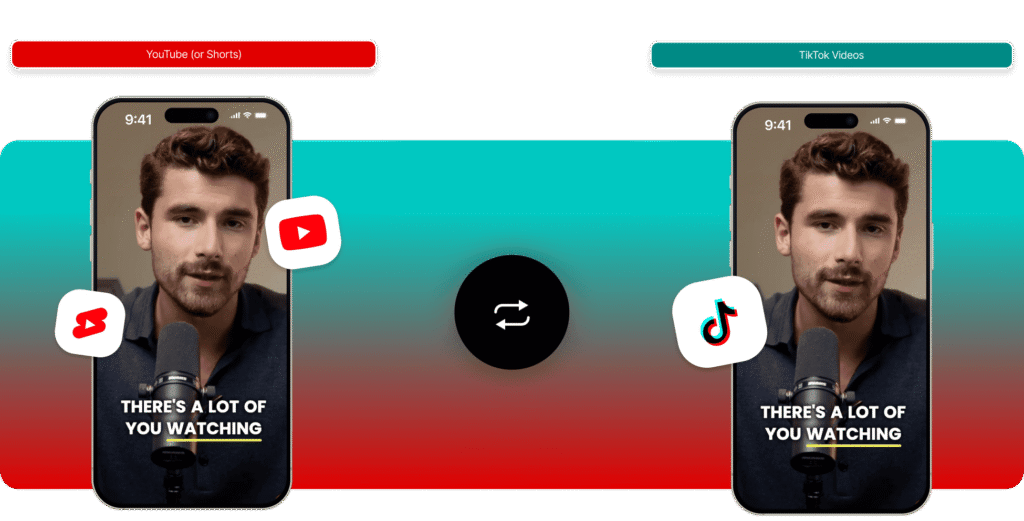
Sendshort AI takes a different, more specialized approach. It is designed not just as an editor but as an AI-powered platform for repurposing long-form video content into short, shareable clips, GIFs, and memes. Its method for adding a Caption to GIF is deeply integrated with its AI transcription features, which sets it apart.
How to Use Sendshort AI to Add a Caption to GIF:
- Start a New Project: You begin by creating a new “GIF/Meme” project within Sendshort AI.
- Upload and Transcribe: After uploading your GIF (or the video you want to turn into a GIF), the platform’s AI can automatically generate a transcript if there is any spoken dialogue. While this is more relevant for videos, the philosophy carries over: text is central.
- Edit and Style Your Text: You can easily edit the AI-generated captions or add entirely new text blocks. Sendshort AI provides robust styling options, allowing you to change fonts, colors, and backgrounds for your text bubbles. A significant advantage here is the potential for efficiency; if you are working with a video clip that has dialogue, the AI can automatically create a synced Caption to GIF, saving you immense time.
- Generate and Download: Once you’ve styled your text and set the timing (if applicable), you generate the final GIF. The platform renders the file, and you can download it for sharing.
Pros and Cons of Sendshort AI:
- Pros: AI-powered transcription can auto-generate captions from speech, which is a massive time-saver for video-to-GIF projects. It offers good styling options and is built for content repurposing at scale.
- Cons: Its primary strength is in handling video content, so for a simple, pre-existing GIF, it might be more complex than necessary. The AI features are its standout, but for a straightforward task of overlaying a single text phrase, other tools might be faster.
CapCut: The Powerful, Feature-Rich Editor (from the makers of TikTok)
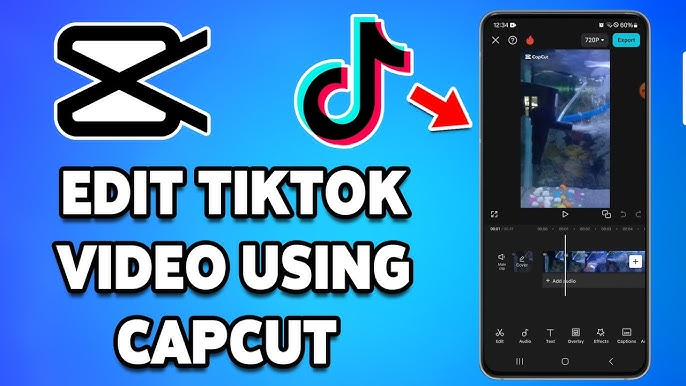
CapCut, developed by ByteDance (the parent company of TikTok), is a powerhouse. It is available as both a desktop and mobile application and offers a professional-grade editing experience, often for free. Its toolset for adding a Caption to GIF is the most extensive and flexible of the three.
How to Use CapCut to Add a Caption to GIF:
- Create a New Project: Open CapCut and start a new project, importing your GIF into the timeline.
- Access the Text Tool: Tap or click on “Text” and then “Add text.” A text layer will appear on your canvas.
- Advanced Customization: This is where CapCut shines. You are not limited to just font and color. You can add animations to your text, making it fade, type out, bounce, or employ any number of dynamic entrances and exits. You can also add text strokes, shadows, and backgrounds for better readability. Furthermore, you can precisely control the timing of when the text appears and disappears on the timeline, which is perfect for creating a narrative with your Caption to GIF.
- Export at High Quality: After perfecting your captioned GIF, you export it. CapCut allows you to choose the resolution and frame rate, ensuring you get the highest possible quality output without a watermark in the free version.
Pros and Cons of CapCut:
- Pros: Incredibly powerful and free, no watermarks, advanced text animations and styling, precise timeline control for text timing, cross-platform availability.
- Cons: The interface has a steeper learning curve due to its plethora of features. It can feel overwhelming if you only need to perform the simple task of adding a basic Caption to GIF.
Choosing the Right Tool for Your Needs
Selecting the best platform to add a Caption to GIF depends entirely on your specific requirements.
- For Absolute Simplicity and Speed: If you need to add a Caption to GIF in under a minute and don’t require fancy effects, Clideo is your best bet. Its streamlined, web-based interface is perfect for quick, one-off projects, though be prepared for a watermark unless you upgrade.
- For Repurposing Video Content with Speech: If you are frequently turning clips from podcasts, interviews, or videos into captioned GIFs, Sendshort AI is a game-changer. Its AI transcription can automate the most tedious part of the process, making it highly efficient for this specific use case.
- For Maximum Creativity and Control: If you want to create a truly polished, professional, and engaging GIF with animated text, multiple captions, or precise timing, CapCut is the undisputed winner. Its free access to high-end features makes it the go-to choice for serious creators who regularly add a Caption to GIF as part of their workflow.
Best Practices for an Effective Caption to GIF
No matter which tool you use, following a few best practices will ensure your captioned GIFs are effective and visually appealing.
- Prioritize Readability: Choose a font that is clear and easy to read. Avoid overly decorative fonts for small text. Ensure there is a strong contrast between the text color and the background of the GIF. Using a text stroke or shadow can make your Caption to GIF stand out against busy or changing backgrounds.
- Keep it Concise: GIFs are short by nature, so your text should be too. Viewers need to be able to read the caption quickly before the GIF loops. Brevity is key.
- Mind the Placement: Place your text in a part of the frame that doesn’t obstruct the main action or subject of the GIF. The corners or the top and bottom bars are often safe bets.
- Consider Timing: For tools like CapCut that allow it, timing your text to appear and disappear with specific actions in the GIF can greatly enhance its comedic or narrative impact.
In conclusion, adding a Caption to GIF is a simple yet powerful way to elevate your digital content. Whether you choose the straightforward approach of Clideo, the AI-driven efficiency of Sendshort AI, or the creative powerhouse of CapCut, you have a variety of excellent tools at your disposal. By understanding the strengths of each platform and applying a few basic design principles, you can effortlessly transform any GIF into a customized, compelling piece of content that captures attention and communicates your message perfectly. The ability to add a Caption to GIF is no longer a specialized skill but an essential part of modern digital literacy.
